Book Writing
 Book Cover Design
 Book Editing
 Book Formatting
 Book Publishing
 Book Video Trailer
 Book Printing
 Audio Books
 Book Illustrations
 Author Website
 Amazon Page Optimization
 Book Marketing
 Fiction Writing
 Non-Fiction
 Autobiography
 Memoir
 Novel Writing
 Children's Book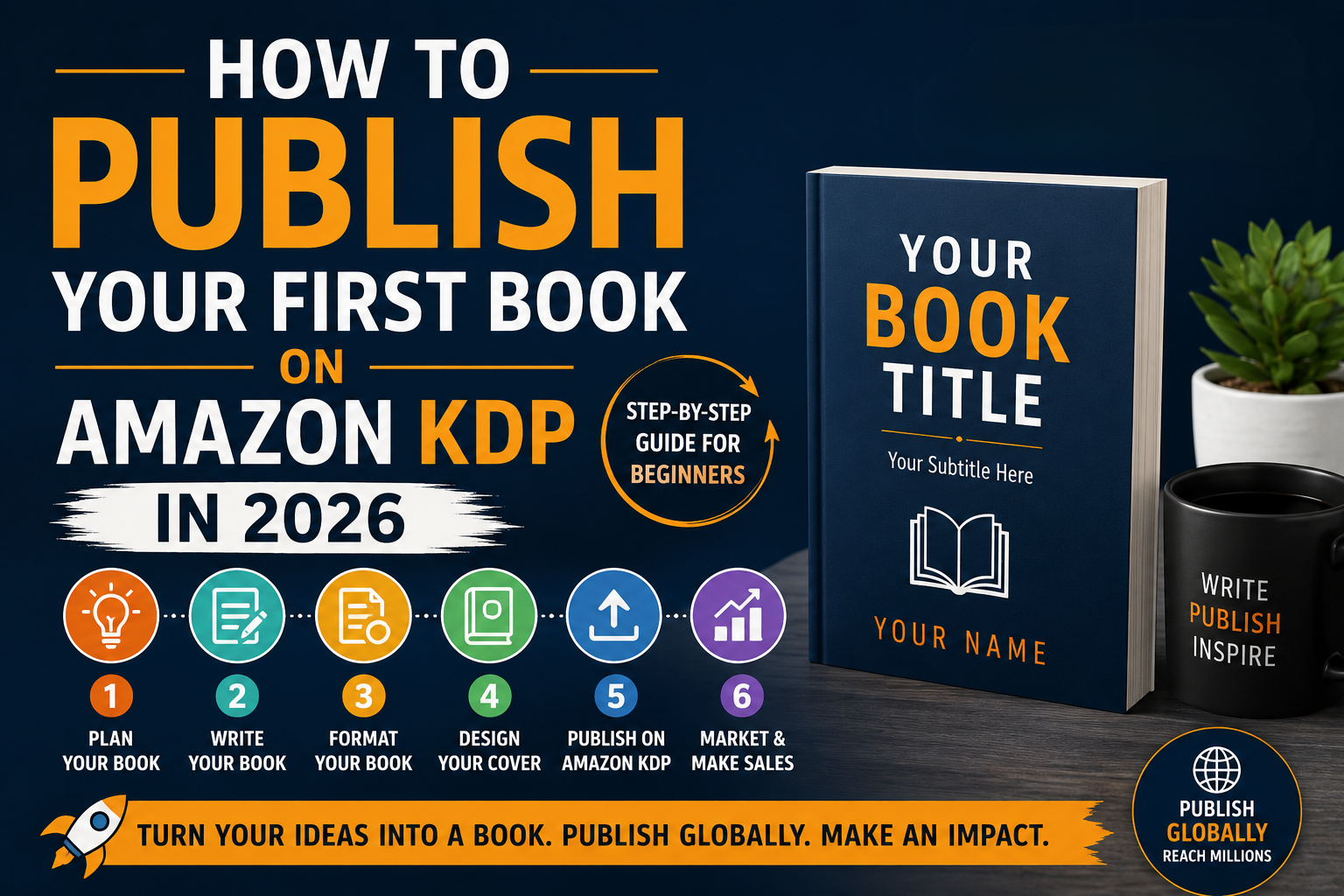
Let me guess your manuscript has been sitting in a folder on your desktop for weeks now. You’ve read it, re-read it, maybe changed the title three times. And somewhere in the back of your head, there’s this nagging question: okay, but how do I actually publish this thing?
I get it. The writing part is hard enough. But then you discover there’s a whole other world waiting on the other side formatting specs, cover dimensions, royalty tiers, keyword fields and suddenly “I wrote a book” turns into “I have no idea what I’m doing.”
Here’s the good news: Amazon KDP (Kindle Direct Publishing) is genuinely one of the most straightforward publishing platforms out there. Millions of authors have done this before you, including people who had zero publishing experience and zero industry connections. You don’t need an agent. You don’t need a publishing deal. You don’t need to spend anything upfront. What you do need is a clear roadmap and that’s exactly what this guide is.
I’m going to walk you through every single step from creating your account to hitting that publish button — so nothing catches you off guard. Let’s get into it.
📘 Quick Recap: What Is Amazon KDP?
Kindle Direct Publishing is Amazon’s free self-publishing platform where you can publish eBooks, paperbacks, and hardcovers and sell them directly through Amazon’s marketplace. Once your book goes live, Amazon handles the printing (only when someone orders), the shipping, and the payment collection. You get a royalty cut. No inventory. No upfront printing bills. No middlemen taking a huge slice of your earnings.
Step 1: Set Up Your KDP Account the Right Way
Head over to kdp.amazon.com and sign in with your Amazon account. If you don’t have one, create it takes two minutes. The account itself is free, but once you’re in, don’t rush past the setup screens. A lot of first-time authors skip certain fields thinking they’ll come back later, and then they wonder why their royalties are delayed or why there’s a tax hold on their earnings.
Before you publish a single thing, make sure you’ve completed all of this:
✅ Account Setup — Don’t Skip Any of These
- Your author or publisher name — exactly how you want it displayed on Amazon listings
- Tax interview — US authors fill out a W-9; everyone else fills out a W-8BEN. This one step determines how much tax Amazon withholds from your royalties. Non-US authors from countries with a US tax treaty (like the UK, Canada, Australia) can often reduce their withholding rate to 0–5%
- Bank account details — direct deposit kicks in at $10; checks require $100 minimum. Set this up now or your money just sits there
- Amazon Author Central — claim your author page, add a photo and bio. It makes your listing look legitimate from day one
Seriously the tax interview alone trips up more authors than anything else. Do it once, do it right, and you won’t have to think about it again.
Step 2: Format Your Manuscript Before You Upload Anything
Formatting is probably the step people underestimate the most. They spend months writing the book and then rush the formatting in an afternoon and it shows. An unformatted or poorly formatted book is one of the fastest ways to collect one-star reviews, because readers notice. Weird spacing, inconsistent fonts, chapter headings that look off — it all erodes trust in you as an author.
KDP accepts several file types, but they’re not all equal. Here’s what I’d actually recommend depending on what you’re publishing:
Publishing an eBook?
.epub gives you the most control. .docx works fine for straightforward text. KDP’s free Kindle Create tool is good if you’re a complete beginner it handles most of the formatting automatically.
Publishing Print (Paperback/Hardcover)?
PDF is the gold standard for print. It locks your layout and eliminates formatting surprises. Upload a Word doc only if you have no other option the conversion sometimes does unexpected things to your layout.
For print books, margins matter more than most people realize. KDP’s required margins for a standard 6×9 trim (the most common size) are: top 0.75″, bottom 0.75″, outside 0.5″, and inside (gutter) anywhere from 0.875″ to 1.125″ depending on your page count. The gutter exists because pages curve inward at the spine if your gutter is too narrow, readers have to crack the spine just to read the inner sentences. Don’t do that to them.
💡 Worth Knowing: Vellum and Atticus
If you want your book to look like it came from a traditional publisher not a first-time indie author look into Vellum (Mac only, one-time purchase) or Atticus (works on any browser, subscription). Both produce genuinely beautiful print and eBook files with styled chapter openers, drop caps, and clean typography. The difference in quality is noticeable, especially in print.
Step 3: Your Cover Is Doing More Work Than You Think
I know everyone says “don’t judge a book by its cover” but readers absolutely do. Your cover is doing sales work 24/7, sitting in search results next to your competitors. When a reader scrolls past twenty books and stops on one, it’s almost always because of the cover. Two seconds. That’s what you get.
KDP has a built-in Cover Creator tool with templates. It’s free, it gets the job done technically, but honestly the covers it produces look like covers made with a free tool. If budget is a real constraint right now, it works. But if you can invest in anything in this process, a professionally designed book cover will give you the highest return on that investment, full stop.
📐 KDP Cover File Requirements 2026
- File type: PDF for print covers; JPEG or TIFF for eBook covers
- Print resolution: 300 DPI minimum anything less and your cover looks blurry in print
- eBook dimensions: At least 1,000px on the short side; the ideal ratio is 1.6:1 so something like 2,560 × 1,600px works well
- Print cover file: Needs to be a single flat file with front + spine + back, plus 0.125″ bleed on all edges
- Spine width: KDP calculates this for you based on page count and paper type use their spine width calculator before you finalize
One thing I’d genuinely suggest: before you design anything or brief a designer, spend 20 minutes looking at the top 20 bestsellers in your specific genre on Amazon. Not just vaguely “books” your exact genre. You’ll start to see patterns in how colors, typography, and imagery work together to signal genre to readers. Your cover should feel like it belongs in that group, not like it came from a different category entirely.
Step 4: Fill In Your Book Details This Part Affects Your Sales More Than You’d Expect
Once your files are ready, you go into the KDP dashboard and click “Add New Title.” You’ll work through three main sections: Book Details, Book Content, and Book Pricing & Royalties. Don’t rush through these screens — the choices you make here directly affect how easily readers can find your book and how likely they are to buy it.
Your Title and Subtitle
The title you enter in KDP must match exactly what’s printed inside your book and on your cover. Amazon is strict about this mismatches can get your book taken down. If you’re writing non-fiction, your subtitle is one of your most powerful discoverability tools. A good non-fiction subtitle describes exactly what the reader gets and often includes natural search phrases. Think of it less like a creative tagline and more like a searchable description of your book’s promise.
Your Book Description – This Is Your Sales Page
KDP gives you up to 4,000 characters for your book description, and most authors waste this space with a bland summary that reads like a book report. Your description isn’t a summary it’s a sales pitch. It needs to pull readers in, speak to what they’re looking for, make them feel something, and end with a reason to click “Buy.”
You can use basic HTML formatting inside your KDP description<b> for bold, <br> for line breaks, <ul> and <li> for bullet lists. Use them. A wall of plain text is much harder to read than a well-structured description with visual breaks.
The 7 Keyword Fields – Use Every Single One
KDP gives you 7 keyword fields, each accepting up to 50 characters. These feed directly into how Amazon’s search algorithm finds and shows your book. Don’t put your genre name here (Amazon already knows your genre from your categories). Don’t put your name. Use these for specific search phrases that real readers actually type when they’re looking for a book like yours.
🔍 The Difference Between Weak and Strong KDP Keywords
❌ Weak (too vague)
- self help
- motivation
- mindset book
- personal development
✅ Strong (specific, searchable)
- morning routine books for success
- overcome anxiety and self-doubt
- habits of highly successful people
- mindset shift for entrepreneurs 2026
Tools like Publisher Rocket and Amazon’s own autocomplete bar are great for finding high-traffic keyword phrases in your niche.
Categories — Pick Them Strategically, Not Obviously
KDP lets you choose 2 categories during setup. After publishing, you can email KDP support and request up to 10 categories total and you should. Categories determine where your book appears in Amazon’s browse trees, and they also determine which Best Seller lists you’re eligible for. An Amazon Best Seller badge even in a narrow subcategory appears on your product page and significantly boosts buyer confidence. Pick at least one or two subcategories where you have a realistic shot at ranking in the top 10.
Step 5: Decide Which Formats to Publish — My Honest Take
KDP supports three publishing formats, and the smartest move for most authors is to publish all three. Here’s why: when someone discovers your book on Amazon, they each have a preferred reading format. eBook readers want eBooks. Print readers want print. If you only offer one format, you’re turning away a chunk of buyers who would have bought a different version.
📱
Kindle eBook
Fastest to publish. Cheapest for readers. KDP pays up to 70% royalties on eBooks priced $2.99–$9.99. A great starting point for building readership quickly.
Wide reach, lower price point
📗
KDP Paperback
Print-on-demand with 60% royalties minus printing cost. The most popular physical format. No upfront cost, no warehouse, no risk.
Physical readers, gifts
📕
KDP Hardcover
Premium feel, higher price point, 60% or 50% royalties depending on your list price. Works especially well for non-fiction, self-help, and gift-style books.
Prestige, non-fiction, gifts
All three formats link together automatically on one Amazon product page readers see all their options in one place. If you want to get into the specific numbers around what hardcover printing actually costs and how that affects your royalties, we’ve broken that down in detail here: KDP Hardcover Printing Cost: Everything You Need to Know in 2026.
Step 6: Price Your Book — And Actually Understand Your Royalties
Pricing feels like a simple decision until you realize how much it affects everything your royalty rate, your positioning in the market, your perceived quality as an author, and your sales velocity. There’s no single right answer, but there are some patterns worth knowing.
| Format | Royalty Rate | Condition | Note |
|---|---|---|---|
| Kindle eBook | 70% | Priced $2.99 – $9.99 | $0.15/MB delivery fee applies |
| Kindle eBook | 35% | Under $2.99 or over $9.99 | No delivery fee |
| Paperback | 60% | All list prices | Printing cost deducted first |
| Hardcover | 60% / 50% | Depends on list price tier | Printing cost deducted first |
For most debut fiction authors, the $2.99 – $4.99 range hits the sweet spot affordable enough to encourage impulse buys, but still within the 70% royalty bracket. Non-fiction can often push higher, into the $5.99 – $9.99 range, because readers perceive practical knowledge as having higher tangible value. As you build reviews and a readership, you can experiment with raising prices.
⚡ Should You Do KDP Select?
KDP Select is a 90-day exclusive enrollment that puts your eBook into Kindle Unlimited the subscription library where readers can access your book for free, and you get paid per page read. The catch: your eBook has to be exclusively on Amazon during that period. No Kobo, no Apple Books, no Google Play.
For a first-time author still building an audience? It’s often worth it. Kindle Unlimited readers tend to read a lot and they’re more willing to try new authors. The per-page-read income can surprise you especially in high-read genres like romance, thriller, fantasy, and self-help. You can always go wide later once you’ve got traction.
Step 7: Upload Your Files and Actually Use the Previewer
Uploading is straightforward KDP walks you through it. But here’s where people get sloppy: they upload, see the green checkmark, and assume everything looks fine. Don’t do that.
KDP has an online previewer that simulates your book on multiple Kindle devices and in print. Use it. Scroll through every single page. Check that your chapter headings are consistent, your page numbers are showing up correctly, images aren’t blurry or cropped weirdly, and no text is riding dangerously close to the edge of the page. For print books, download the print previewer it gives you a more accurate representation of how the actual printed book will look.
The most common upload errors I see authors hit: images too low-resolution for print, margins too tight and text getting cut off, embedded fonts not properly included in the PDF. KDP will flag most of these automatically, but it’s better to catch them yourself before submission.
Step 8: Order a Proof Copy — Yes, Even If You Think You Don’t Need To
I know it feels like an extra step. You’ve reviewed the digital previewer, everything looks good, you just want to publish and be done with it. But for any physical book, ordering a proof copy is one of the most important things you can do.
You order it at cost no royalty markup through your KDP dashboard once your files are approved. And holding that book in your hands tells you things a screen simply cannot: is the paper quality what you expected? Does the cover color match your design? Is the spine text readable? Does the interior font feel comfortable to read at that size for 300 pages straight?
A lot of authors discover the font they chose looks beautiful on screen but feels slightly too small in print. Or the cover color came out a touch darker than expected. These are easy fixes before you go live and much better to catch than to deal with after real customers have already received copies.
Step 9: Hit Publish — Then Start the Real Work
When you click publish, your book goes into Amazon’s review queue. eBooks typically go live within 24–72 hours. Print books usually take 3–5 business days for the first submission. You’ll get an email when it’s live and yes, that moment is genuinely exciting. Savor it for a minute.
Then get to work. Publishing is where the journey starts, not where it ends. The authors who make real income on KDP treat their book like a product launch, not a one-and-done project. Here’s what matters in those first few weeks:
Get Your First Reviews — Before Launch If Possible
Reviews are everything on Amazon. The algorithm watches them. Buyers trust them. Even 10–15 honest reviews in your first two weeks will meaningfully improve your conversion rate and your ranking. Send out ARC (Advance Review Copy) versions to beta readers, your email list, and anyone in your network who reads your genre. Ask for honest reviews, not just positive ones Amazon can detect patterns that look suspicious.
Run Amazon Ads — Even on a Small Budget
Amazon Sponsored Product ads put your book in front of readers who are already searching for books exactly like yours. Start small $5–$10 a day and focus on keyword targeting. You’ll lose some money while you learn what keywords convert, and that’s normal. Most authors find a handful of keywords that work really well and gradually scale those up.
Use Book Promo Sites to Build Momentum Fast
Newsletters like BookBub, Freebooksy, and Bargain Booksy send daily emails to readers who have opted in to see deals in specific genres. Running a Free Book Promotion through KDP Select stacked with a Freebooksy feature can result in thousands of downloads in a single day which rockets your free-chart ranking and often generates a meaningful uptick in paid sales and reviews once the promo ends.
Build Out Your Amazon Author Central Profile
This is free and takes 30 minutes and most authors never bother with it. Your Amazon Author Central page is where a reader lands when they click your name on a book listing. Add a proper headshot, a real bio (written like a person, not a press release), your blog RSS feed, and any editorial reviews or endorsements. A complete profile makes you look like a legitimate author, not someone who uploaded a Word document.
Mistakes I See First-Time KDP Authors Make Way Too Often
These aren’t obscure edge cases they’re genuinely common. Knowing them in advance saves you time, money, and frustration.
🚀 Your Full KDP Publishing Roadmap
Step 1
Create & set up KDP account
Step 2
Format your manuscript properly
Step 3
Design a genre-right cover
Step 4
Enter title, keywords & categories
Step 5
Choose your format(s)
Step 6
Set price & royalties
Step 7
Upload & preview files
Step 8
Order a proof copy
Step 9
Publish & promote 🎉
Final Thoughts: You’re Closer Than You Think
Publishing your first book on Amazon KDP in 2026 is not as complicated as it first appears. Yes, there are steps. Yes, there are technical details to get right. But none of it is beyond you thousands of first-time authors work through this every single month, and most of them didn’t have a guide half as detailed as this one when they started.
The authors I see struggle aren’t the ones who didn’t know everything at the start. They’re the ones who waited until they knew everything before they started. There’s a version of you on the other side of this who has a published book on Amazon, earning royalties, building an audience, and already thinking about the next one.
You know the steps now. Go publish your book.
📚 Keep Reading — Related Guides
- 🔗 KDP Hardcover Printing Cost: Everything You Need to Know in 2026
- 🔗 Amazon KDP Account Setup Guide for New Authors (Coming Soon)
- 🔗 What Beginners Need Before Publishing on Amazon KDP (Coming Soon)
- 🔗 Common Amazon KDP Mistakes First Time Authors Make (Coming Soon)
- 🔗 Amazon KDP Formatting Guidelines Explained (Coming Soon)
- 🔗 Amazon Author Central: How to Set Up and Optimize Your Author Profile (Coming Soon)