Book Writing
 Book Cover Design
 Book Editing
 Book Formatting
 Book Publishing
 Book Video Trailer
 Book Printing
 Audio Books
 Book Illustrations
 Author Website
 Amazon Page Optimization
 Book Marketing
 Fiction Writing
 Non-Fiction
 Autobiography
 Memoir
 Novel Writing
 Children's Book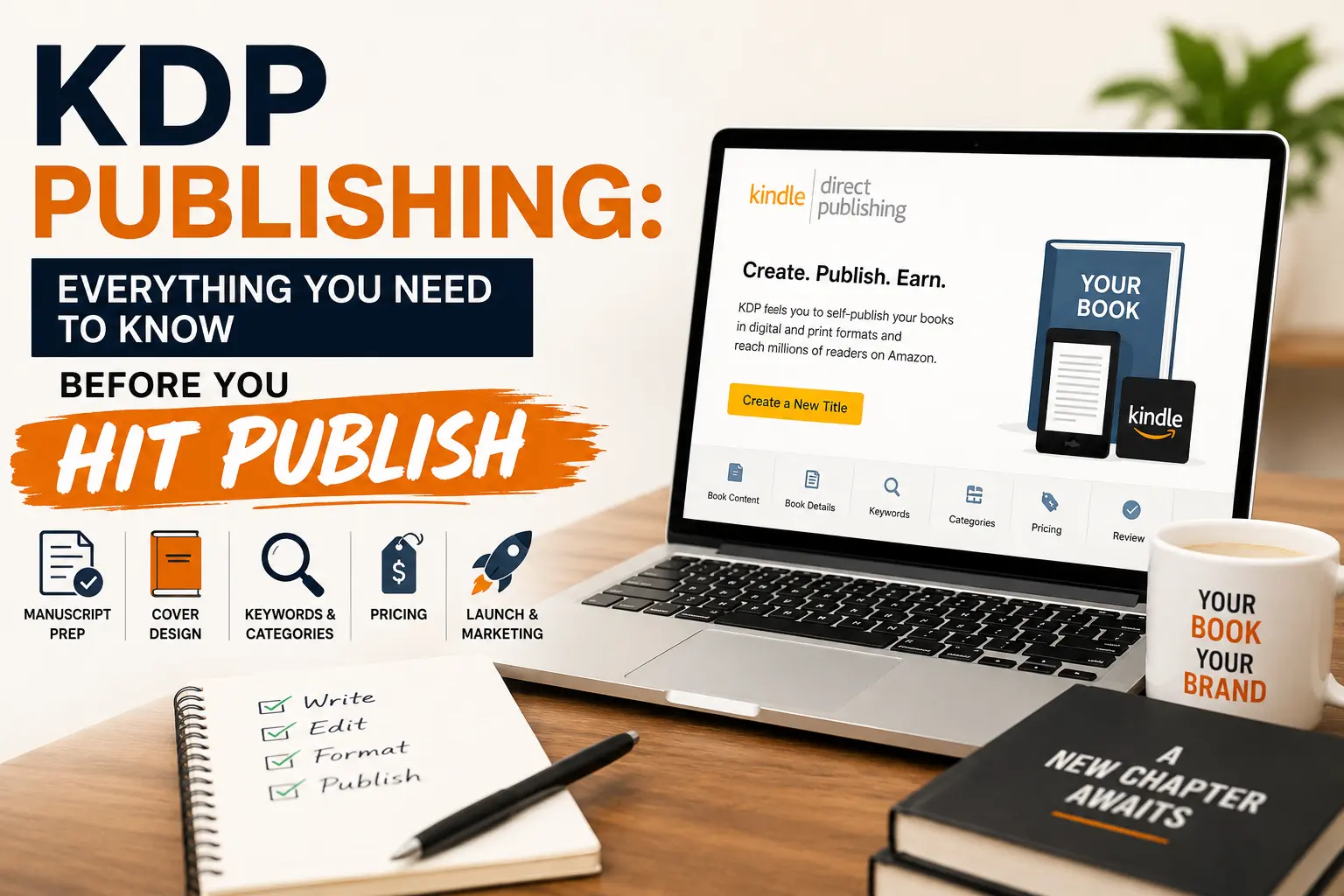
Not that long ago, getting published meant a pile of rejection letters and a lot of patience. You needed an agent. The agent needed a publisher. The publisher needed a reason to take a chance on you. That gatekeeping still exists in traditional publishing, but it no longer controls who gets to reach readers. Amazon’s Kindle Direct Publishing blew the door open, and a whole generation of authors walked through it.
That said, KDP is not the plug-and-play experience some people expect. Upload a file, set a price, watch money come in. It rarely works like that on its own. There are real choices involved. Settings that seem minor actually shape how your book gets discovered. Mistakes that feel small in the moment can quietly cost you sales for months. This guide covers the whole platform so you know what you are getting into before you start clicking.
At The Author Central, we have walked hundreds of authors through this process. What is in here reflects what we have seen working, and what we have watched go wrong.
Section 01
Start Publishing with KDP
Kindle Direct Publishing is Amazon’s self-publishing arm, and it costs nothing to use. No setup fees. No gatekeepers deciding your book is not quite right for the market. You keep your rights, you set your own prices, and Amazon pays you royalties every time a copy moves. For independent authors, that kind of control used to be unthinkable. Now it is the standard starting point.
How to Create Your KDP Account
If you already shop on Amazon, you can log into KDP at kdp.amazon.com with the same login. Otherwise you will make a new account during signup. First thing after you get in is filling out your account details: legal name, address, tax forms, and banking information so royalties actually reach you. Do not skip any of this up front.
✦ Use your legal name exactly as it appears on your tax documents, not your pen name, for account registration. Your pen name goes in the author name field when creating a book, not here.
✦ US authors will fill out a W-9 form within KDP. Non-US authors complete a W-8BEN to potentially reduce or eliminate US tax withholding on royalties.
✦ KDP pays royalties approximately 60 days after the end of the month in which earnings were generated, provided your balance meets the minimum payment threshold.
✦ You can connect a bank account for direct deposit, or choose to receive payments by check or wire transfer depending on your country.
Understanding the KDP Dashboard
Once your account is set up, the dashboard is where you will spend most of your time. Three tabs you will come back to constantly: Bookshelf, Reports, and Community.
✦ Bookshelf is where all your titles live. You can see every book you have published, check on their status, make edits, and add new work from here.
✦ Reports is where you check sales, royalties, and Kindle Unlimited page reads. Updates daily, so you always have a current picture of what is happening.
✦ Community connects you to KDP’s forums and support resources. When something goes sideways and you need answers fast, other authors in the forum have usually already run into the same thing.
Do not skip past the tax and banking setup. Authors do this all the time and then wonder why their royalties are being withheld at a punishing rate. Fill out the tax interview completely before your first book goes live so your earnings are handled correctly from day one. Our team at The Author Central walks clients through this as part of our full publishing setup service.
Section 02
Create a Book
Adding a new title starts with the “Create” button on your Bookshelf. Before anything else, KDP asks what format you are publishing. It is worth thinking about this for a second rather than just clicking the first option.
Choosing Your Format
KDP supports three formats right now. You can publish the same book in all three and link them together on one listing:
✦ Kindle eBook: A digital edition sold in the Kindle store and readable on any device with the Kindle app. This format reaches the widest audience and has the lowest production friction.
✦ Paperback: A print-on-demand physical book. Amazon prints copies as orders come in, which means you carry zero inventory and never have to ship anything yourself.
✦ Hardcover: A premium print-on-demand format introduced more recently, giving readers and gift buyers a higher-end option.
Fields You Will Fill In When Creating a Book
Every format takes you through the same core fields. Get these right the first time and you save yourself from chasing corrections later.
✦ Title and Subtitle: Enter your exact book title. The subtitle field is optional but valuable for nonfiction because it adds searchable context. Do not stuff keywords into your title field in ways that look unnatural as Amazon has policies against this.
✦ Series: If your book belongs to a series, you can add the series name and volume number here. Linking to a series creates a series page on Amazon that displays all related titles together.
✦ Edition: Most first-time authors leave this blank. It is typically used for books being published in a new or revised edition.
✦ Author Name: This is where your pen name or publishing name goes. You can also add contributors such as editors, illustrators, or foreword writers.
✦ Description: Your book description is essentially your sales pitch. It appears on your Amazon product page and heavily influences whether someone buys your book after they find it.
✦ Publishing Rights: Confirm that you own the rights to the content you are publishing and that it does not infringe on anyone else’s intellectual property.
✦ Keywords: You get seven keyword fields. These are not visible to readers but they affect how your book surfaces in Amazon search. Choose them strategically.
✦ Categories: You can choose up to two BISAC categories that determine where your book appears in Amazon’s browsing structure.
Section 03
Book Detail Resources
The Book Details section is where your book gets its identity on the platform. Think of the difference between a book spine-out on a back shelf versus face-out on the front table. The information you enter here shapes how readers find you and what they see when they do.
Writing a Book Description That Actually Sells
Your description lives on your Amazon product page and has a 4,000 character limit, somewhere around 600 to 650 words. That is meaningful space. Most authors waste it.
✦ Open with a hook, not a summary. The first two sentences are what readers see before clicking “read more,” so make those sentences earn their place.
✦ For fiction, lead with the emotional stakes and the central conflict. Readers want to feel something before committing to 300 pages.
✦ For nonfiction, name the problem your book solves and what the reader actually walks away with. Vague promises do not convert.
✦ Use the basic HTML formatting tags KDP supports in descriptions. Bold, italics, paragraph breaks, and headers are all fair game, and they make your listing look a lot less like a wall of text.
✦ End with a short call to action. Even something as plain as “Grab your copy today” gives an undecided reader a nudge in the right direction.
Choosing the Right Categories
Amazon lets you pick two BISAC categories when you publish. These determine which genre charts your book is eligible to rank on. It matters more than it sounds.
✦ Go specific enough that you can realistically compete, but not so narrow that no one is browsing there. Ranking number one in a subcategory with zero traffic is not a win.
✦ After your book is published, you can request additional categories beyond the initial two by contacting KDP support. Most authors never do this and miss the extra placement entirely.
✦ Look at what categories your closest competing titles are listed under. If a similar book is ranking somewhere you had not considered, take that as a signal worth following.
Keyword Strategy on KDP
Each of your seven keyword fields holds up to 50 characters. The trick is thinking like a reader, not like the person who wrote the book. What would someone actually type into Amazon’s search bar if they wanted something like yours?
✦ Use phrases, not single words. “Historical romance Scotland 18th century” is doing far more work than just “romance.”
✦ Do not repeat words already in your title or category. Amazon indexes those automatically, so you are wasting field space if you echo them.
✦ Think about reader intent and mood. Phrases like “books similar to [author name]” or “cozy mystery small town bakery” catch very specific searches that single-word terms will never surface in.
✦ Stay away from anything that reads as a claim, “bestseller,” “award winning,” and the like. KDP prohibits these in keyword fields and will flag them.
A well-written book description can make a real difference in your conversion rate. At The Author Central, our Amazon Page Optimization service covers your description, keywords, categories, and everything else that affects how your book performs on the platform.
Section 04
Release Date Options
When your book goes live is a publishing decision, and it deserves real thought. KDP gives you flexibility here, and knowing what each option actually does helps you time your launch rather than just hoping for the best.
Publish Immediately
The default is to make your book available as soon as Amazon finishes reviewing it, usually somewhere between 24 and 72 hours. Most authors choose this. Once it clears, it shows up in the Kindle Store and on Amazon’s website. No countdown, no fanfare, just live.
Pre-Orders for Kindle eBooks
KDP lets you set a pre-order for Kindle eBooks up to 12 months out. Pre-orders are genuinely underused by self-published authors. Here is why you should pay attention to them:
✦ Every pre-order sale counts toward your launch day total. That matters because it means you can hit bestseller charts with a stronger opening than a same-day launch alone could produce.
✦ A live pre-order page gives you something to actually promote in the weeks before release. You can share the link, start collecting early reviews, and build some anticipation before anyone can even read the book.
✦ You can keep updating your manuscript file during the pre-order window, right up until 10 days before the release date. After that cutoff, whatever file you have uploaded is what readers will receive.
✦ Worth noting: pre-orders are only available for Kindle eBooks. Print books do not have a pre-order option.
Setting a Specific Release Date Without Pre-Orders
If you want to skip pre-orders but still aim for a particular launch day, you can submit your files early and plan your marketing around the expected approval window. Just leave yourself some cushion. KDP reviews can occasionally run long during busy seasons, and cutting it close rarely goes the way you planned.
Section 05
Upload Book Resources
The upload step is where your manuscript becomes an actual product. What you upload and how you prepare it has a direct effect on the experience your readers have, so it is worth getting this right rather than treating it as a formality.
Accepted File Formats for Kindle eBooks
KDP takes several manuscript formats for Kindle eBooks. Each one has tradeoffs:
| Format | Best For | Notes |
|---|---|---|
| Word (.docx) | Most manuscripts | Most commonly used. KDP converts it automatically. |
| ePub | Already formatted eBooks | Gives you the most control over the final reading experience. |
| HTML | Technical authors | Requires HTML knowledge to use effectively. |
| Not recommended for eBooks | Only use PDF for print book interiors, not Kindle. |
Common Upload Mistakes and How to Avoid Them
✦ Inconsistent heading styles: If your chapter headings are manually bolded and enlarged rather than using Word’s actual Heading styles, the table of contents in the Kindle version will not generate correctly. It has to be styled properly in the source file.
✦ Low-resolution images: KDP recommends at least 300 DPI. Images that look sharp on your screen can come out blurry on a Kindle Paperwhite. Check resolution before you upload.
✦ Wrong page size in Word: If your document is set to standard 8.5×11 letter size but your print trim is 6×9, your page count will be wrong and your interior layout will not match what KDP is expecting.
✦ Fonts not embedded: Specialty fonts need to be embedded in your final document. If they are not, KDP may swap them for a default font and your intended layout changes with it.
Never upload a PDF as your Kindle eBook interior. PDFs do not reflow properly on Kindle devices, which means readers with different screen sizes will see text cut off or formatting that looks broken. Always use Word or ePub for your eBook upload.
Section 06
Accessibility for eBooks
Accessibility means readers who rely on screen readers, adjustable fonts, or text-to-speech can get the same experience out of your book as anyone else. Amazon has put real resources into Kindle accessibility, and the platform does pay attention to how well your eBook is structured.
Why Accessibility Matters for Your Book
✦ Roughly 1 in 5 readers lives with some form of print disability, including visual impairments, dyslexia, or motor difficulties. Accessible books reach this audience. Inaccessible ones do not.
✦ Amazon’s algorithms factor accessibility scores into eBook quality evaluations. A well-structured file can surface better in search and browse results than a poorly structured one with the same content.
✦ Kindle Unlimited readers who use text-to-speech depend on proper semantic structure to actually hear your book in the right order. Bad structure produces a garbled listening experience, and that shows up in reviews.
How to Make Your eBook More Accessible
✦ Use proper heading hierarchy: H1 for your title, H2 for chapter headings, H3 for sub-sections where needed. Screen readers navigate by these landmarks. Without them, the structure of your book is invisible to assistive technology.
✦ Add alt text to all images: Every image needs descriptive alternative text so readers using screen readers understand what the image shows, not just that one exists.
✦ Build a working table of contents: Your NCX navigation file must link correctly to every chapter. KDP checks this during review, and broken navigation is one of the most common Kindle complaints.
✦ Avoid text inside images: Important text embedded in an image is invisible to screen readers. If the information matters, it belongs in the actual manuscript, not baked into a graphic.
✦ Use KDP’s Accessibility Checker: After uploading, KDP generates an accessibility report that flags specific problems. Read it before you publish rather than after a reader points them out.
Section 07
What Is an ISBN and Imprint?
Pick up any book at a store and flip it over. That barcode on the back cover, and the 13-digit number running beneath it, is the ISBN. How ISBNs work for self-published books trips up a lot of first-time KDP authors, so it is worth getting this straight before you publish.
ISBN Explained
ISBN stands for International Standard Book Number. Each edition of a book gets its own unique one. Your eBook, paperback, and hardcover are treated as separate products, so each needs its own ISBN.
✦ Kindle eBooks on Amazon do not require an ISBN. Amazon assigns its own identifier, an ASIN, to every Kindle title. That is what functions as the book’s unique ID within the Amazon system.
✦ Print books are a different story. Both paperback and hardcover editions need an ISBN to sell through Amazon and through any other retail or library channel.
✦ KDP provides a free ISBN for print books. You can use it, but if you do, your book’s publisher field will read “Independently Published” and that cannot be changed.
✦ You can purchase your own ISBN instead. In the US, ISBNs come from Bowker at myidentifiers.com. Owning your ISBN lets you list your own imprint as the publisher and use that same ISBN across other retail channels.
Understanding Imprints
Your imprint is just your publishing company name. You do not need to formally register a business to have one. A lot of self-published authors create an imprint because it looks more professional on Amazon and positions them as a publisher rather than a private individual.
✦ Use the free KDP ISBN and the publisher field on your Amazon listing will permanently show “Independently Published.” You cannot override that.
✦ Buy your own ISBN through Bowker or another provider and you register any imprint name you choose. That name becomes the publisher of record on every platform that carries your book.
✦ Your imprint does not have to match your author name. Something like “Stonebridge Press” or “Harbor Light Publishing” works fine. Pick whatever fits the brand you are trying to build.
Section 08
Barcodes
Barcodes make your ISBN scannable. A bookstore scanning the back of your title, a warehouse processing an order, all of that runs through the barcode. For most KDP print authors this happens automatically, but knowing the basics prevents problems when you are designing your cover.
How KDP Handles Your Barcode
Use KDP’s Cover Creator and the barcode gets placed on the back cover automatically, correct position, correct size, nothing for you to source or figure out yourself.
✦ Design your cover externally in Photoshop, InDesign, Canva, or anything else, and you are responsible for either placing the barcode yourself or leaving the designated blank space where KDP will drop it in during print setup.
✦ KDP’s cover template tool has a downloadable PDF for your specific trim size and page count with guidelines showing exactly where the barcode goes. Use it before you finalize your design.
Barcode Specifications to Know
✦ Book barcodes use the EAN-13 format. It encodes your ISBN along with pricing information so retail systems can identify and ring up your title correctly.
✦ The barcode needs a clean, light background with strong contrast. Place it over a dark or detailed part of your cover art and it will not scan reliably in print.
✦ Minimum size is roughly 1.5 inches wide by 1 inch tall. Go smaller and you start running into scanning problems.
✦ KDP reserves the lower right corner of the back cover for the barcode. If your design has something important sitting in that spot, move it before you upload. The barcode will go there regardless.
Section 09
Print Options
Publishing a print book means making a handful of configuration decisions that touch everything from how the book feels in someone’s hands to how much you actually earn per copy. These settings are connected to each other. Lock them down before you start formatting your interior, or you will end up redoing work.
Trim Size
Trim size is the physical dimension of your finished book. KDP has a range of standard options. Your choice should fit what readers in your genre already expect:
| Trim Size | Best Used For |
|---|---|
| 5 x 8 inches | Poetry, short story collections, literary fiction |
| 5.5 x 8.5 inches | Fiction, romance, thriller, YA |
| 6 x 9 inches | Nonfiction, business, memoir, self-help (most popular overall) |
| 7 x 10 inches | Textbooks, workbooks, reference guides |
| 8.5 x 11 inches | Large format workbooks, children’s books, art books |
| 8.5 x 8.5 inches | Square children’s books, photography books |
Settle on your trim size before you open your formatting document. Everything else, margins, font sizing, page count, spine width, depends on it.
Interior Type
✦ Black and White: Standard for text-heavy books. The printing cost per page is significantly lower than color, which matters a lot once you are looking at royalty numbers.
✦ Standard Color: Good quality color, suitable for illustrated books, infographic-heavy guides, cookbooks, and children’s titles. Wo ✦ rks well for most color use cases.
✦ Premium Color: Higher-quality ink with better color accuracy. Best suited for photography books, fine art, or anything where the printed colors need to match the original files as closely as possible. Costs more per page than standard color.
Section 10
Color Ink Options
Color printing through KDP is real and it works well for illustrated books, photo books, cookbooks, and children’s titles with full art. But the cost jump from black and white is significant, so you want to understand what you are getting into financially before you commit to it.
Standard Color vs. Premium Color
✦ Standard Color handles most illustrated books well. Infographics, diagrams, children’s art, cookbook photos, anything where color matters but exact shade matching is not the top priority. It is the more common choice and produces solid results for the majority of color interiors.
✦ Premium Color uses higher-quality ink with a wider color range. It is for photography books, fine art titles, and any project where the printed colors genuinely need to be as close as possible to the original digital files. The per-page cost is higher than standard.
Making Color Work Financially
Color printing produces beautiful results. It also takes a real bite out of your royalty because the per-page cost is so much higher than black and white:
✦ Run KDP’s royalty calculator before committing to color. Enter your intended price and see what your actual royalty looks like after the printing cost comes out. If the number is very low or negative, you either need to raise your price or rethink your format.
✦ For books that are mostly text with some supporting images, converting those visuals to high-quality black and white is worth considering. The cost savings are real and most informational images hold up fine in black and white.
✦ For children’s picture books where color is non-negotiable, pricing between $14.99 and $19.99 is often necessary to protect any meaningful royalty at standard color printing rates.
Section 11
Groundwood Paper
Paper choice sounds like a minor thing. It is not. Readers notice it even when they cannot explain what they are noticing. The feel of cream versus white paper under your fingers sets a tone before the first sentence is ever read.
White Paper vs. Cream Paper
✦ White paper has a brighter surface and produces sharper contrast for black text. That makes it better for books with images, charts, diagrams, or any visual content where clarity matters. Nonfiction, business books, textbooks, and illustrated guides generally fit white paper better.
✦ Cream paper has a warmer, slightly off-white tone. It reduces eye strain over long reading sessions and gives the book that classic, traditional feel. Most commercially published fiction uses cream paper, and there is a reason for that.
Cost and Availability
White and cream paper cost exactly the same through KDP. The decision is purely about feel and genre fit. One thing to check: not every trim size is available in both options, so verify against KDP’s current specifications when you are setting up your print book.
Fiction and literary nonfiction meant for long reading sessions: cream. Books with images, tables, diagrams, or anything reference-oriented: white. Not sure? Pull a few published books in your genre off your shelf and look at what they use.
Section 12
Upload and Preview Book Content
Uploading your files is straightforward. Reviewing them carefully is where a lot of authors cut corners, and those corners show up in reader reviews. Take your time here.
Using the Online Kindle Previewer
After you upload your eBook manuscript, KDP’s online previewer shows you how your book will look on different Kindle devices without needing to download any software. You can toggle between Kindle Paperwhite, Fire tablets, the Kindle phone app, and the Kindle tablet app.
✦ Go through every chapter heading. Confirm they render correctly and that their table of contents links actually work.
✦ Scroll through image pages slowly. Images that sit perfectly in Word sometimes shift or resize in strange ways after conversion.
✦ Look at your first page and your last. The opening of your book should feel intentional, with no leftover formatting garbage from your Word document bleeding through.
✦ Actually click the table of contents links in the previewer. Broken navigation is one of the most common complaints you will see in Kindle reviews, and it is completely preventable.
Ordering a Physical Proof Copy
For print books, order a physical proof before you approve anything for sale. Every time. The small printing cost is worth it.
✦ A proof copy is printed exactly the same way a customer copy will be. What you are holding is the real thing, not a simulation.
✦ Cover colors often look different in print than on a screen. This surprises a lot of authors. The proof shows you that gap before your readers see it.
✦ Page numbers, running headers, chapter openers, and any interior decorative elements are far easier to verify in a physical copy than they are staring at a PDF on a monitor.
✦ You can approve the book for sale while the proof is in transit. If issues turn up when it arrives, upload corrected files and the book stays live throughout that process.
Section 13
Convert a Paperback Word File to PDF
KDP requires a PDF for print book interiors. If you wrote your manuscript in Microsoft Word, converting it properly is more involved than just hitting “Save As PDF.” Getting this step wrong is one of the most common reasons print books come out looking wrong, and it is entirely avoidable.
Why the Conversion Process Matters
When Word converts to PDF, the layout locks. Every margin, every font, every image position gets frozen exactly as it was. That is what you want for print, but only if the document was set up correctly beforehand. Problems that are invisible in your Word file tend to appear very clearly in the PDF.
Step-by-Step Conversion Best Practices
✦ Start with the right page size in Word. Before you type a single formatted word, set your page size in Word to match your trim size exactly. Go to Layout, then Size, then “More Paper Sizes” and enter the dimensions manually. Do not assume the default is correct.
✦ Set your margins from KDP’s template. KDP requires specific minimum margins for each trim size. Download their template rather than guessing. Margins that are too small will trigger a review rejection.
✦ Embed all fonts before saving. When saving as PDF from Word, open Options within the Save dialog and check “Embed fonts in the file.” If you skip this, KDP may substitute a default font and your carefully chosen typography disappears.
✦ Use Save As, not Print to PDF. Printing to a virtual PDF printer can compress images and shift spacing in ways that only show up in print. The native Save As PDF function in Word preserves your file more accurately.
✦ Review the PDF before you upload it. Open it in Acrobat Reader or a similar viewer and scroll through every page. Look for text that moved, images that shifted, or anything that looks different from your Word original. Catch problems here, not after your book is live.
Section 14
Pricing Resources
Pricing is a real business decision, not just a number you pick and forget. KDP gives you full control over it. What you charge shapes your income, your sales volume, and how readers perceive your book before they have read a single word.
Kindle eBook Royalty Tiers
KDP has two royalty rates for Kindle eBooks, and the gap between them is significant:
| Royalty Rate | Required Price Range | Conditions |
|---|---|---|
| 35% | $0.99 and above | Available to all authors. Delivery fee applies to some titles. |
| 70% | $2.99 to $9.99 | Available in most countries. Book must be priced at or below lowest price elsewhere. Delivery fee applies. |
Print Book Royalty Calculation
Print royalties work differently from eBooks:
✦ KDP pays a 60% royalty on the list price for paperbacks sold on Amazon.com, then deducts the printing cost for that specific book. What is left is what you actually earn.
✦ Your printing cost varies by page count, trim size, interior type, and which marketplace the sale came from. A 300-page color book sold in Australia costs more to print than the same book in black and white sold in the US.
✦ Run KDP’s royalty calculator before you set your final price. Model a few different price points and see what the actual earnings look like after printing costs come out.
✦ Expanded Distribution sales, through retailers and channels outside of Amazon, receive a lower royalty rate. Factor that in if wide distribution is part of your plan.
Pricing Strategy by Genre
✦ Kindle eBooks: Most fiction genres sit comfortably between $3.99 and $6.99. Nonfiction often holds $7.99 to $14.99. The first book in a series is sometimes priced at $0.99 or even free to pull readers into the funnel.
✦ Paperbacks: Fiction paperbacks generally run $12.99 to $18.99. Nonfiction tends to land between $14.99 and $24.99. Specialty formats like workbooks or illustrated titles can push higher.
✦ Hardcovers: Premium pricing is the expectation. Most self-published hardcovers fall somewhere between $22.99 and $34.99, depending on length and subject matter.
Section 15
Timelines
Every author needs to plan around KDP’s timelines. If you submit your files two days before a planned launch and expect everything to be live and perfect on schedule, you are going to have a bad week. Know what each step takes.
Standard KDP Processing Times
| Action | Typical Processing Time |
|---|---|
| New Kindle eBook review | 24 to 72 hours |
| New paperback review | 72 hours to 5 business days |
| New hardcover review | 72 hours to 5 business days |
| Cover or interior file update | 24 to 72 hours |
| Book description or metadata update | 12 to 24 hours |
| Price change | 12 to 24 hours |
| Physical proof copy delivery (US) | 5 to 7 business days from approval |
Planning Around Peak Publishing Seasons
✦ Review times stretch during high-traffic stretches. October through December is the busiest, when holiday book shopping sends a wave of new submissions through the queue at once.
✦ Holiday launch? Submit your files by mid-November at the latest. That gives you enough buffer for the review process plus time to handle anything unexpected that comes up.
✦ Pre-order titles have their own hard deadline: your final manuscript file must be uploaded at least 10 days before the release date. The platform being busy does not change that.
Section 16
Book Status
Your KDP Bookshelf shows a status next to every title. These labels tell you exactly where things stand in the publishing process and what you need to do, if anything. Knowing what each one means saves you from guessing and from opening unnecessary support tickets.
Understanding Each Status Label
✦ Draft: You started creating this title but have not submitted it for publishing yet. Manuscript, cover, and pricing may still be incomplete. Nobody can find your book and nothing is live.
✦ In Review: You submitted your files and Amazon is going through them. This is normal. Do not resubmit unless KDP asks you to, or unless you catch an error you want to fix before the book goes live.
✦ Live: Your book cleared review and is on sale. Readers can find it, buy it, and leave reviews. This is where you want to be.
✦ Publishing: A brief transitional status that shows up right after approval while the book propagates across Amazon’s systems. Usually flips to “Live” within a few hours.
✦ Blocked: Amazon found a problem with your book. That could be a rights dispute, a content policy issue, or a file error. Check your email for a KDP notification explaining what needs to be fixed before the book can go forward.
✦ Unpublished: The listing is down, either you pulled it or Amazon did. It is no longer visible to shoppers. If you unpublished it yourself, you can bring it back through your Bookshelf.
What to Do When Your Book Gets Blocked
✦ Read the KDP notification email carefully. Amazon will tell you exactly why the book was blocked, whether it is a content issue, a rights problem, a cover image concern, or something else. Do not assume.
✦ Fix only what they flagged. Do not make a batch of unrelated changes and hope the problem disappears on its own.
✦ Resubmit through your Bookshelf. If the correction was on point, the next review should clear it.
✦ If you believe the block was an error or you disagree with the reason, contact KDP support through your account directly. Bring documentation of your rights or a clear explanation of why the content is appropriate. Be specific.
Section 17
Low-Content Books
Low-content publishing is a real and active part of the self-publishing market. It runs through KDP exactly the same way any other print book does. What separates it is what is inside and how the business model works.
What Counts as a Low-Content Book?
✦ Journals and notebooks:Lined, dotted, grid, or blank pages sold as journaling or writing tools. What separates them in the market is almost entirely cover design, niche targeting, and audience focus.
✦ Planners:Daily, weekly, or monthly planning layouts. Can be general purpose or built around a specific niche: fitness tracking, meal planning, goal-setting, and so on.
✦ Activity and puzzle books: Sudoku, crosswords, word searches, mazes, and similar puzzle formats packaged for various audiences.
✦ Coloring books:Adult coloring pages and children’s coloring books. Interior design requirements here are more involved than text-based low-content formats.
✦ Log books and trackers: Habit trackers, workout logs, reading logs, expense trackers, any structured tool built around repetitive entry.
How to Succeed in Low-Content Publishing
✦ Research before you build anything. Search Amazon for your intended product type and study what is actually selling. Look at bestseller rankings, cover designs, review counts, and pricing on the titles ahead of you.
✦ The cover is often the whole product. In low-content publishing, buyers make decisions almost entirely based on the cover. Generic design does not compete. This is not an area to cut corners on.
✦ Keywords are your only real discovery channel. Low-content books are found through Amazon search, almost exclusively. Weak keyword strategy means your book will not surface regardless of how solid the product is.
✦ Most successful low-content publishers build libraries. Relying on one or two titles to carry the income is fragile. Each new title is another discovery opportunity across different searches and niches.
KDP has tightened its policies on low-content books over the past few years. Titles that are nearly identical to each other, that reuse the same interior with a different cover, or that offer almost no real value to the buyer are increasingly being blocked or removed. Your titles need to offer something genuine. That bar is not especially high, but it does exist now.
Section 18
Hardcover
When KDP added hardcover to its print-on-demand lineup, it gave authors something that had not existed before: a premium print option with zero inventory risk. You do not stock anything. Amazon prints when someone orders. The hardcover edition just shows up as another format option on your product page.
When Hardcover Makes Sense
✦ Nonfiction and business books: Readers buying professional titles often default to hardcover. It signals a level of seriousness that a paperback sometimes does not, particularly when the book is meant to sit on a desk or get handed to a colleague.
✦ Memoirs and personal narratives: These get gifted a lot. If you expect your book to end up wrapped under a tree or handed across a table at a birthday dinner, a hardcover edition is worth having available.
✦ Collector and signature editions: Authors who do events, conferences, or sell signed copies find that buyers are more willing to pay a premium for a hardcover signature than a paperback one.
✦ Children’s books: Parents tend to associate hardcovers with higher quality for young readers, and many children’s picture books and early reader titles launch in hardcover first as a result.
Hardcover-Specific Considerations on KDP
✦ Not every trim size available for paperbacks is currently available for hardcovers. Check KDP’s current specifications page for supported hardcover dimensions before you start formatting.
✦ Hardcover printing costs more than paperback, so your retail price needs to be set higher to protect a meaningful royalty. Most KDP hardcovers need to clear $22 before the numbers make sense.
✦ The cover template for a hardcover is different from the paperback version. If you are designing your own cover, download the correct hardcover template with the spine width calculation matched to your specific page count.
✦ Hardcover editions link to your existing eBook and paperback so all three formats appear together on the same Amazon product page.
Section 19
Beta: Audiobooks with Virtual Voice
Getting an audiobook made used to mean either hiring a professional narrator at considerable expense or recording it yourself in whatever quiet corner of your house you could find. KDP’s Virtual Voice feature changes the math by using AI-generated narration to create an audio version of your Kindle eBook for next to nothing.
How Virtual Voice Works
✦ Virtual Voice is available to eligible Kindle eBook authors through an opt-in program within KDP. Not all titles or all accounts have access to the feature simultaneously as Amazon rolls it out in phases.
✦ You select from a library of AI-generated voices and submit your eBook for conversion. Amazon’s system reads your manuscript and produces an audio file using the selected voice.
✦ The resulting audiobook is made available through Kindle Unlimited and other Amazon audio channels. It is not distributed to Audible’s full marketplace or to third-party platforms.
✦ Royalties from Virtual Voice audiobooks are paid at a per-stream or per-listen rate similar to Kindle Unlimited page reads rather than a traditional audiobook purchase royalty.
Limitations to Consider
✦ AI narration, while increasingly natural-sounding, does not yet match the emotional nuance, pacing, and character voice differentiation that a skilled human narrator provides.
✦ Poetry, dialogue-heavy fiction, and books that rely heavily on tone and rhythm will perform less well with AI narration than straightforward nonfiction or informational content.
✦ Certain types of content may not be eligible for Virtual Voice due to content policy restrictions.
✦ This is still a beta feature, meaning the program, pricing, and availability are subject to change as Amazon continues developing it.
If you want your book narrated by a real voice actor with proper studio production, The Author Central offers professional audiobook production. A skilled human narrator brings your characters and content to life in a way that AI simply cannot yet replicate. Professional audiobooks also qualify for full distribution through Audible and other major platforms.
Section 20
Beta: Kindle Translate
Publishing in one language means you are talking to one slice of the global reading market. Kindle Translate is Amazon’s answer to the question successful English-language authors eventually ask: how do I get this in front of readers in Spain, France, Germany, or Brazil?
What Kindle Translate Does
✦ Kindle Translate uses machine translation to automatically convert your eBook into one or more supported languages. You submit your original eBook and select the target language, and the system produces a translated version.
✦ Translated books are published as separate listings in the target language marketplace. They are distinct products from your original title and have their own ASINs and product pages.
✦ Authors retain rights to the translated versions and earn royalties from any sales of those editions.
What to Expect from Machine Translation Quality
✦ Machine translation has improved dramatically in recent years, particularly for common language pairs like English to Spanish, English to French, and English to German. For informational nonfiction, how-to content, and business books, the quality is often quite usable.
✦ Fiction, poetry, and any content that relies on wordplay, cultural nuance, idioms, or humor will fare significantly worse in machine translation. These elements require human judgment that AI translation cannot reliably provide.
✦ KDP recommends having a native speaker review the machine-translated text before publishing. This is sound advice. Even a brief editorial review can catch awkward phrasing, cultural mistranslations, and obvious errors before readers encounter them.
Section 21
Start a Book Series
A well-run book series is one of the strongest structures in publishing, traditional or independent. Readers who like your first book will often buy every title that follows. Amazon has built specific infrastructure for series pages, and using it correctly pays off in both visibility and sales across every entry in the series.
How to Set Up a Series on KDP
✦ When creating or editing any book in your series, you will find a Series field in the Book Details section. Enter your series name exactly as you want it to appear on Amazon. Be consistent across every title because even small differences in spelling or formatting will prevent books from linking properly.
✦ Enter the volume number for this specific book in the series. Book one gets a 1, book two gets a 2, and so on. Non-linear series or companion novels can sometimes use decimal volumes like 1.5 for a story that takes place between book one and book two.
✦ Repeat this process for every book in the series. Amazon will create a series page that displays all linked titles together in order.
✦ Visit your series page on Amazon after each new book is added to confirm it is appearing correctly and in the right order. Occasionally a linking issue will prevent a title from appearing, and it is better to catch this early.
Benefits of a Well-Organized Series Page
✦ Readers who discover any book in your series can immediately see the full series, how many books exist, and jump to buy the others without additional searching. This drives series binge-buying, which is one of the most valuable behaviors in reader economics.
✦ Amazon’s algorithms recognize series reading patterns and often recommend subsequent books to readers who purchased an earlier title in the series. A properly linked series gets these follow-on recommendations. An unlinked series does not.
✦ Series pages consolidate your author brand presence on Amazon. Instead of six separate listings scattered across search results, your series appears as a coherent, professional body of work.
✦ Series-wide promotions become much easier to execute when your books are properly linked. Running a Kindle Countdown Deal or a price promotion on book one often drives visible uplift in sales for the rest of the series.
Naming Your Series Well
✦ Choose a series name that is memorable, distinct, and relevant to the world or theme of your books. Generic names that could apply to any series do not build as strong a brand identity.
✦ Avoid naming your series the same as an already established series from another author. Amazon’s search results will blend your series page with theirs, which creates confusion and can suppress your own visibility.
✦ The series name appears prominently on each book’s product page, so it functions as part of your cover marketing. Readers will judge whether a series sounds like something they want to invest in based on both the name and the first cover they see.
Ready to Publish Your Book the Right Way?
From manuscript formatting and KDP setup to Amazon page optimization and audiobook production, The Author Central takes care of every step so your book launches with everything it needs to actually succeed.