Book Writing
 Book Cover Design
 Book Editing
 Book Formatting
 Book Publishing
 Book Video Trailer
 Book Printing
 Audio Books
 Book Illustrations
 Author Website
 Amazon Page Optimization
 Book Marketing
 Fiction Writing
 Non-Fiction
 Autobiography
 Memoir
 Novel Writing
 Children's Book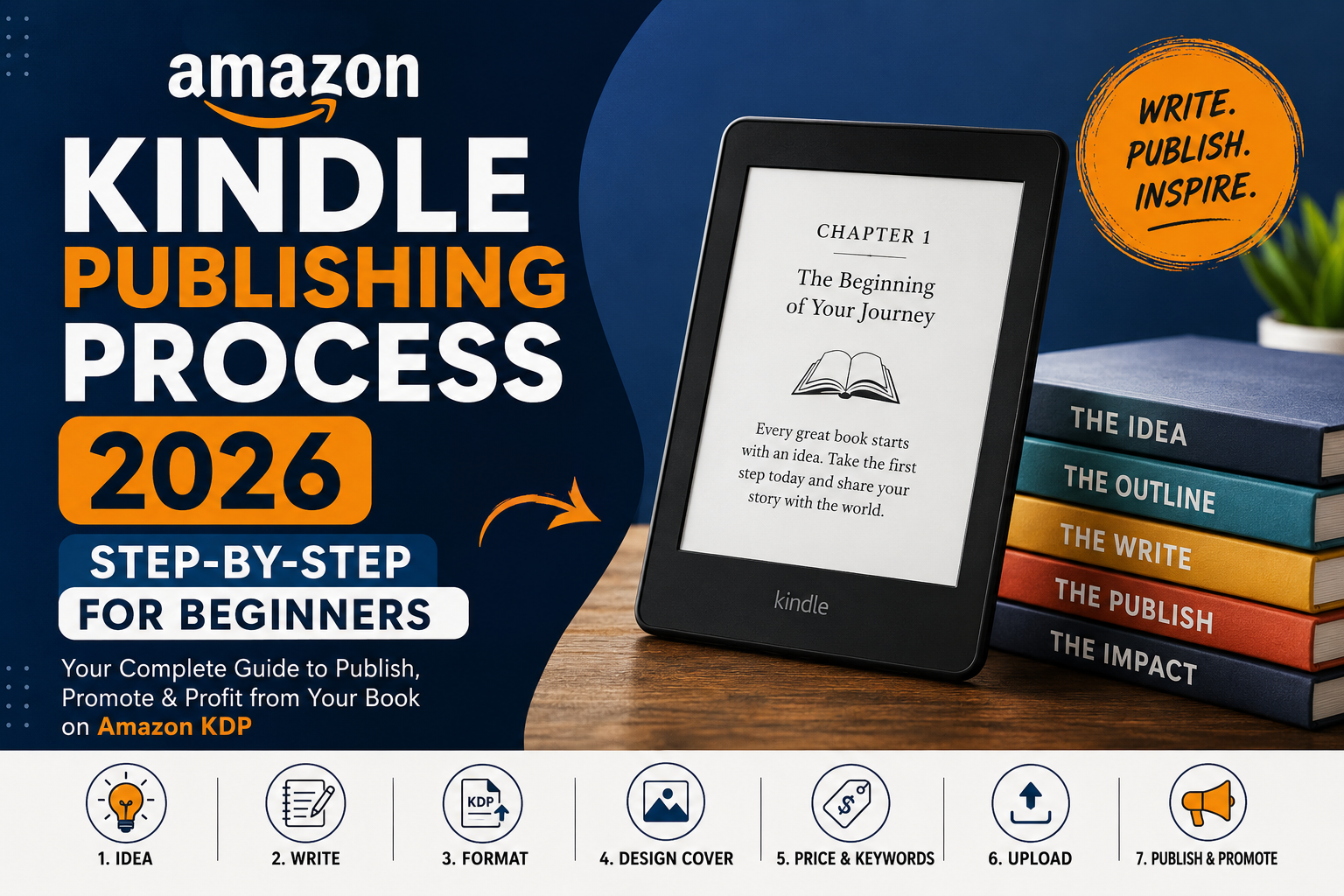
The first time I tried to publish on Amazon Kindle, I sat in front of my laptop for two hours without uploading a single thing. The KDP dashboard felt like a cockpit I had no training for. Too many tabs, too many fields asking for information I did not know I needed, and a constant fear that clicking the wrong button would somehow ruin everything. Eventually my wife walked past, looked at my screen, and said “just click something.” So I did. And I made basically every mistake a first-time author can make. Everything I am sharing here about eBook publishing comes from going through that painful process myself, figuring out what actually matters, and watching what changed when I finally started doing things right.
This is the step by step process as it works in 2026, after KDP has updated several things from how it looked even two years ago.
Get your manuscript completely ready before you open KDP
I cannot say this strongly enough. The KDP dashboard will let you upload almost anything and call it published. That does not mean you should. I once uploaded a book that I thought was ready, got it live within a few hours, and then found a formatting error in chapter three that a reader pointed out in a public review. That review is still there. The error is fixed but the review remains. That is how eBook publishing works. Mistakes are visible and permanent in a way that drafts are not.
Before you log into KDP, your manuscript needs to be fully written, edited by someone with fresh eyes, proofread at least twice, and formatted specifically for Kindle. Your cover needs to be designed and saved at the right dimensions. Your book description needs to be written, not as a summary but as a genuine piece of sales writing. And your author bio, keywords, and category choices should already be researched and decided. If any of those things are not done yet, close this guide, go finish them, and come back. Rushing into the publishing dashboard before you are ready is where most first-time authors make mistakes that follow their books for years.
Setting up your KDP account the right way
Go to kdp.amazon.com and sign in with your Amazon account. If you do not have one, create one first. Once you are in, the first thing to do before anything else is go to your account settings and fill in your tax information and bank account details completely.
This is the step most new authors skip because they are excited to get to the publishing part. What they do not realize is that Amazon holds all royalties until your tax information is verified. That verification process can take anywhere from a day to over a week. So if you publish on Monday and your banking information is not in yet, you could be waiting days before your royalties even start accumulating properly. Do the account setup first, then publish.
Also think carefully here about your author name. If you are writing in one genre this is simple. If you are planning to write across very different genres, consider pen names now rather than later. You can have multiple pen names under one KDP account and it keeps your reader audiences cleanly separated.
Starting your first title inside the dashboard
Click the Create button on your KDP bookshelf and choose between Kindle eBook and Paperback. If you are doing both, which I recommend, you will go through a similar process for each one. Start with the Kindle eBook.
The first page asks for your book details. Your title, subtitle, series name if applicable, and the edition number. Enter these exactly how you want them to appear on the Amazon product page because your title feeds directly into search. If your title or subtitle naturally contains words people would search for when looking for a book like yours, that helps your discoverability. If it does not, your keyword fields later will need to do extra work.
The description field is also on this first page and I want to spend a moment on it because most guides treat it as an afterthought. Your description is doing sales work every single minute your book is live. It is what converts someone who clicked on your cover into someone who actually buys. Open your current description right now and ask yourself honestly: does this make me want to buy this book? If the answer is anything other than yes, rewrite it. Study the descriptions of the top selling books in your category. They almost always open by naming the reader’s problem or desire directly, build toward the promise your book delivers, and close with a reason to buy today. Copy that structure. Not the words, the structure.
Keywords and categories are more important than most people think
Amazon gives you seven keyword slots. Most authors type in the most obvious words they can think of and move on. The authors who actually rank and get discovered treat this section like a research task.
Your keywords are not descriptions of your book. They are phrases your ideal reader is typing into Amazon when they are looking for exactly what you wrote. Think about the problem your book solves. Think about how someone in the middle of that problem would search. They are probably typing something specific and urgent, not a broad academic label.
Use Amazon’s own search bar to research this. Start typing your topic and look at what autocomplete suggestions come up. Those are real searches by real buyers. Any of those phrases that relate to your book is a keyword worth using.
For categories, you pick two during the setup process but this is not your limit. After your book is live you can email KDP support and request to be added to up to ten categories total. Most authors never do this and it costs them real visibility. Smaller subcategories with less competition can get your book into a bestseller tag far more easily than sitting in a massive top-level category with a hundred thousand other titles. That bestseller orange banner matters more than most people think for click-through rates.
Your cover is the first sales tool your book has
Amazon gives you a built-in Cover Creator tool. I am going to tell you plainly not to use it. The output is generic, readers recognize it immediately, and it signals amateur in a way that is hard to recover from. Your cover is the first thing someone sees in a search result, usually at thumbnail size, and it has about two seconds to make someone click instead of scroll past.
If budget is tight, Canva has Kindle-specific templates that with some effort and a decent font choice can produce something that looks intentional. Fiverr has book cover designers starting around thirty dollars. Services like Miblart specialize in self-published book covers and produce solid work at reasonable prices. Whatever you spend on your cover, think of it as the cost of getting someone to even look at your description. Without a cover that works, nothing else you do on the product page matters.
Your file needs to be a JPEG or TIFF, at least 2560 by 1600 pixels, with the text readable at thumbnail size. That last part is the real test. If you cannot read your title at thumbnail size, your cover is not working.
Uploading your manuscript and the final check
On the next page you upload your actual book file. Amazon accepts Word documents and EPUB files. If you formatted in Word with proper heading styles and a working clickable table of contents, the docx file works fine for most straightforward books. If you used Atticus, Scrivener, or Vellum, export to EPUB for a cleaner result.
After you upload, Amazon processes the file and opens a previewer inside the browser. Use it. Do not skip this step. Click through at least ten or fifteen pages in different parts of the book. Check that your chapter headings look right. Check that your table of contents links actually jump to the right chapters. Check that images, if you have any, are not distorted or too large. This previewer is your last chance to catch problems before they become published problems.
If something looks off in the previewer, do not publish yet. Go back to your manuscript, fix the issue, and re-upload. It is worth the extra hour. A formatting problem that makes it into your published book will generate reviews that mention it, and those reviews will still be there after you fix the file.
Pricing, royalties, and KDP Select
Amazon offers two royalty rates for Kindle eBooks. You earn 35 percent on books priced below $2.99 or above $9.99, and 70 percent on books priced between $2.99 and $9.99. For most nonfiction and genre fiction, pricing in that 70 percent range is the obvious choice both for your income and for how readers perceive the value of your book.
The KDP Select enrollment question comes up during this step too. KDP Select means Amazon exclusivity for 90 days, meaning you cannot sell the Kindle version anywhere else during that period. In exchange you get access to Kindle Unlimited, where you earn money based on pages read by subscribers, and you get access to promotional tools like free book days and Kindle Countdown Deals.
For a first book, I genuinely recommend enrolling. Kindle Unlimited readers are voracious and the page-read income can be substantial even for a new book with no reviews yet. The promotional tools, especially free days, can spike your rankings and generate the early reviews that make eBook publishing work long-term. After the 90 days you can leave KDP Select and go wide if you choose.
What happens after you hit publish
Amazon reviews your book after submission and it typically goes live within 24 to 72 hours. You will get an email when it is approved. Once it is live, your job shifts from publishing to marketing, which is a whole separate conversation, but there are a few things to do immediately.
Check your live listing and make sure everything looks exactly right. Read your description on the actual product page. Look at your cover at thumbnail size in search results. Check that your categories are correct. If anything is off, you can go back into KDP and edit most things without unpublishing.
Start collecting reviews as quickly as you can. Social proof is one of the most important factors in eBook publishing success and a book with ten reviews will always outperform an identical book with zero reviews. Reach out to people who agreed to read early copies and remind them the book is live. Message your email list if you have one. Post about the launch on whatever platforms your readers use.
Also set a reminder to check your KDP dashboard every few days for the first month. Watch your sales numbers, your Kindle Unlimited page reads, and your category rankings. These numbers tell you what is working and what needs attention. Maybe your sales rank is decent but your conversion rate is low, which usually means your description needs work. Maybe you are getting page reads but not sales, which might mean your Look Inside sample is not hooking people. The dashboard gives you signals. Learn to read them.
One more thing nobody tells you about eBook publishing
The authors who do well on Kindle over the long term are almost never the ones who published one book and waited. They are the ones who treated that first book as the beginning of a body of work. Every book you publish makes the previous books more visible. Every new reader you earn becomes a potential buyer for everything you have ever written. The compound effect of multiple books on Kindle is real and it is one of the most compelling arguments for treating eBook publishing as a long-term project rather than a one-time experiment.
Your first book might not make you rich. Mine certainly did not. But if you do the work properly, learn from what the data tells you, and keep writing, the second book will do better. And the third better still. That is how this works.