
The KDP Cover Calculator is Amazon’s free tool for working out how big your print cover should be. Tell it your binding, ink and paper, trim size and page count, and it hands back the full cover width and height, the spine width, the bleed and safe areas, and a downloadable template to design on.
You’ll find it here: KDP Cover Calculator and Template Generator (official)
It only handles print books. A Kindle eBook cover is a single front image with its own pixel requirements, which I cover further down.
Get these four things ready first
Don’t guess at any of them. One wrong input and every number that comes out is wrong too.
- Binding. Paperback or hardcover. The layouts differ, so pick the one you’re actually publishing.
- Interior ink and paper. Black-and-white, standard color or premium color. For a black-and-white paperback, you’ll also choose white or cream paper. Paper thickness is what sets the spine width.
- Trim size. The finished page size, like 5 x 8 in, 5.5 x 8.5 in or 6 x 9 in. It has to match what you formatted your interior at.
- Final page count. Take it from your finished interior PDF, not from your word processor’s estimate or a target you’re aiming for. Front matter, blank pages and back matter all count, and a single extra page nudges the spine.
Lock your interior before you generate a template. If the page count changes later, you’ll need to generate a new one.
Using the Calculator, Step by Step
Step 1: Choose paperback or hardcover. Do this first, because everything else is calculated from it. Hardcovers also have wrap and hinge areas that paperbacks don’t.
Step 2: Pick your ink and paper. Choose the same options you used when you set up the book in KDP. If the calculator is set to cream and you print on white, your spine won’t fit.
Step 3: Enter trim size and page count. Select your trim size, then type in the page count from your final interior PDF. Don’t add anything for the cover, since it’s a separate file.
Step 4: Generate and download the template. The calculator shows your cover dimensions and builds a template marking out the full layout: front and back areas, spine, bleed, margins and safe areas. Download it and open it in a design program that can work with a PNG or PDF.
Step 5: Build your cover on top of it. Create a canvas at the exact full-cover size, put the template on its own layer at the bottom, and design on the layers above. Delete the template layer and any guide text before you export. The full checklist is further down.
What the Numbers Actually Mean
The diagram below shows the layout for the 6 x 9 in, 300-page example I’ll use in a moment. Notice how little room the spine takes compared with the two covers, and how thin the bleed is.
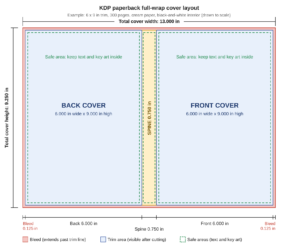
KDP paperback full-wrap cover layout showing total width, height, bleed, spine and safe areas for a 6 x 9 in, 300-page book.
- Total cover width: the width of the whole file, edge to edge. That’s bleed + back cover + spine + front cover + bleed, and it’s your canvas width.
- Total cover height: bleed + trim height + bleed. That’s your canvas height.
- Spine width: the strip between the back and front covers. It depends on page count and paper type, so it’s different for almost every book.
- Bleed: background or image that runs 0.125 in (3.2 mm) past the trim line on the top, bottom and outside edges. Books get cut after printing, and if the blade shifts a little, bleed keeps a white edge from showing.
- Safe area: where your text and important artwork should live so nothing gets trimmed or slides onto another panel. KDP wants text at least 0.125 in (3.2 mm) inside the trim lines, and no front or back cover text should run into the spine.
- Margin: the strip between the safe area and the trim edge. Keep text and key images out of it unless they’re meant to wrap.
- Spine safe area: KDP allows roughly 0.0625 in (1.6 mm) of variance on either side of the fold lines, so spine text needs at least that much breathing room on each side.
A Worked Example: 6 x 9 in Paperback, 300Pages, Cream Paper
The book is a black-and-white paperback on cream paper, 6 x 9 in trim, 300 pages.
| Measurement | Result | How it’s reached |
| Spine width | 0.750 in | 300 pages x 0.0025 in |
| Total cover width | 13.000 in | 0.125 + 6 + 0.750 + 6 + 0.125 |
| Total cover height | 9.250 in | 0.125 + 9 + 0.125 |
| Bleed | 0.125 in | top, bottom and outside edges |
Now change one thing at a time and see what happens:
| Change | Spine width | Total cover width |
| Same book on white paper (300 x 0.002252 in) | 0.6756 in | 12.9256 in |
| Same book on cream paper, 320 pages | 0.800 in | 13.050 in |
Swapping the paper alone shifts the spine by about 0.074 in. Twenty extra pages shift it by 0.05 in. That’s plenty to push spine artwork off-center, and it’s the reason you should never recycle a template from an old book.
Paperback vs. hardcover vs. Kindle eBook covers
These get mixed up constantly. They’re three different files with three different sets of dimensions, so don’t reuse one for another.
| Paperback | Hardcover | Kindle eBook | |
| What you upload | One PDF: back, spine and front as a single image | One PDF: back, spine and front as a single image | Front cover image only |
| Size comes from | KDP Cover Calculator | KDP Cover Calculator | Fixed pixel specs, no calculator |
| Spine | Yes, based on page count and paper | Yes, use the calculator’s number | None |
| Bleed or wrap | 0.125 in (3.2 mm) bleed on top, bottom and outside edges | Cover must extend 0.51 in (15 mm) past the edge of the front cover to wrap the case board | Neither |
| Other layout rules | Text at least 0.125 in inside trim | Text and images 0.635 in (16 mm) from the book edge; 0.4 in (10 mm) hinge space beside the spine | Ideal 2,560 x 1,600 px, minimum 1,000 px high x 625 px wide, ratio about 1.6:1, JPEG or TIFF, RGB, under 50 MB |
KDP’s help page doesn’t give a spine formula for hardcovers. It points you to the calculator for the layout, so use the calculator’s numbers as they are. Official specs: paperback covers, hardcover covers, Kindle eBook covers.
If you’re publishing both a print edition and a Kindle edition, you’ll need two cover files. They can share the same front artwork, but the dimensions and setup are completely separate.
Paperback Spine Multipliers (A Sanity Check, Not a Replacement)
KDP’s help page lists a per-page value for each paperback type. Multiply your page count by the value for your ink and paper and you get the spine width.
| Ink and paper | Per page |
| Black-and-white, white paper | 0.002252 in (0.0572 mm) |
| Black-and-white, cream paper | 0.0025 in (0.0635 mm) |
| Standard color | 0.002252 in (0.0572 mm) |
| Premium color | 0.002347 in (0.0596 mm) |
Use these only as a double-check. KDP can change its figures, and the calculator always has the final word. If your math and the calculator disagree, go with the calculator. Lots of third-party spine calculators use different values, so compare them against KDP’s own output.
One more rule on spine text: your book needs at least 79 pages to carry text on the spine. With fewer, KDP may reject a cover that includes it. On narrow spines, leave 0.0625 in (1.6 mm) clear on both sides of the text.
Using the Template and Exporting Your Cover
Once the template is open in your design program, run through this list:
- Set the canvas to the full-cover size, exactly as the calculator shows it.
- Keep the template on a locked bottom layer and design above it.
- Extend backgrounds and images into the bleed. Keep text inside the safe area and off the spine, unless it’s spine text sitting in its own safe area.
- Make sure text is 7 pt or larger so it stays readable.
- Before exporting, remove the template layer, crop marks, color bars, guide text and any software references.
- Flatten transparencies and embed your fonts.
- Use images at 300 DPI or higher, sized at 100%. KDP recommends CMYK for print images.
- Save one PDF with the back cover, spine and front cover together, with no password or encryption. KDP recommends keeping it under 40 MB.
Then upload it and check the result in KDP’s previewer. If you can swing it, order a proof copy before you publish. It’s the only way to see how the spine and fold lines really sit on the finished book.
Don’t want to design the cover yourself? KDP’s free Cover Creator can put together a basic one. And if you’d rather get a print-ready file from someone else, take a look at our book cover design service.
Mistakes I see all the time
- Generating the template before the interior is final. A different page count means a different spine. Run the calculator again after any change.
- Picking the wrong paper or ink. Cream, white, standard color and premium color are all different thicknesses.
- Starting from an old or third-party template. It may not match this book’s page count, paper or trim size.
- Skipping the bleed. If backgrounds stop at the trim line, you risk a white edge after cutting.
- Putting text on the spine of a short book. Under 79 pages, leave the spine blank.
- Mixing up Kindle and print dimensions. They’re different files.
Related guide: Want more on trim sizes, margins and upload requirements? Read our KDP book cover dimensions guide.